
Import PDF and EPUB files into RSVP Reader when you want long-form documents inside the same workflow as your articles and saved text. This page covers what import is for, when PDF and EPUB reading behave differently, and what to do if a file feels awkward after import.
Import PDF and EPUB files the simple way
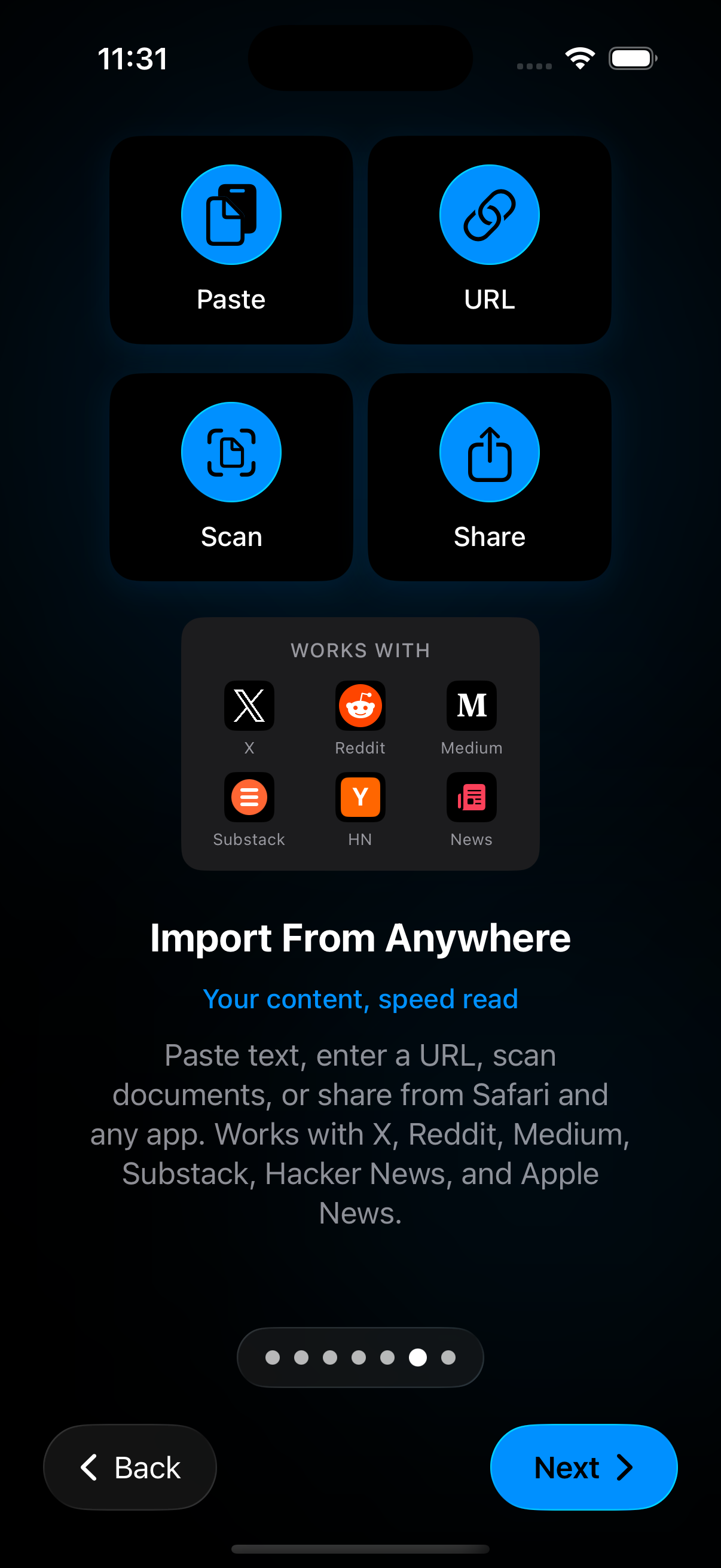
Open the import controls in RSVP Reader and choose the document type you want to bring in. Select the PDF or EPUB file from the Files picker or the source where the document is stored. Once the file is in the app, it can live in the library like the rest of your reading material.
The point is not only file access. The point is to keep longer reading in the same place as your other reading sessions.
Why PDF and EPUB behave differently
PDFs are fixed-layout documents. EPUBs are structured ebook files with chapters and book flow. That means the reading experience can differ after import. PDFs may need a more careful first pass and stronger display control. EPUBs benefit more from chapter-aware reading and saved re-entry.
If your main problem is a PDF workflow, pair this page with read PDFs faster on iPhone. If you are working with books, open read EPUBs faster on iPhone, and if your books come from Amazon, see how to speed read Kindle books once they are imported.
What to change after import
If the document feels too dense, lower the pace and increase font size where possible. If the chapter or section is tiring, switch reading modes. If the document is too long for one sitting, rely on bookmarks and saved progress instead of trying to finish it in one push.
Troubleshooting
If a file imports but feels hard to read:
- Lower pace.
- Change theme.
- Increase font size or spacing if the mode allows it.
- Bookmark your place and return in a calmer setup.
If the issue is not the file but the workflow, go back to import anywhere.
Sources
Read books in the Books app on iPhone | Apple Support | Publication date not listed | https://support.apple.com/en-lamr/guide/iphone/-iphc1af7c57/ios RSVP Reader: Speed Reading App | Apple App Store | April 1, 2026 | https://apps.apple.com/us/app/rsvp-reader-speed-reading/id6757968737