

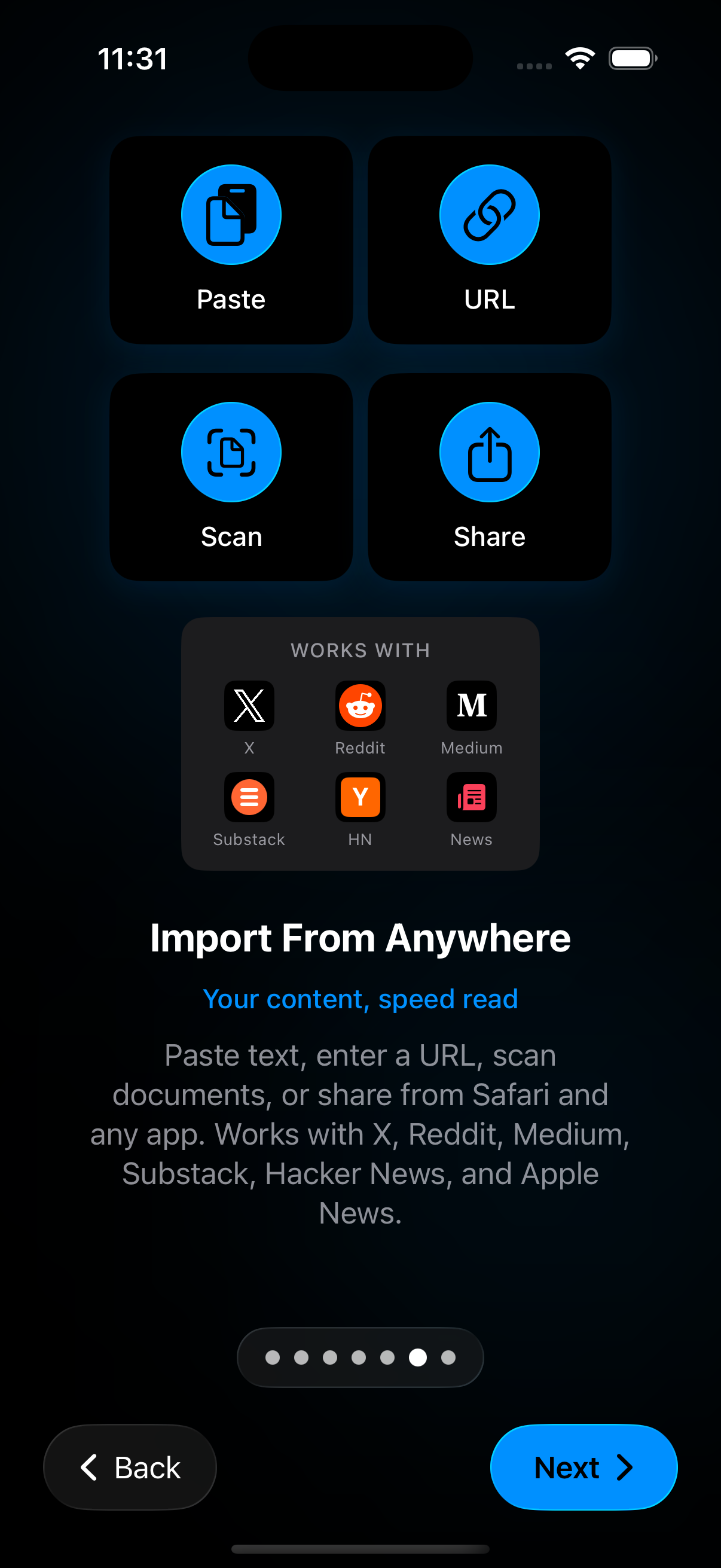
Scan printed pages into RSVP Reader when the text you need is still on paper. The goal is not to create a perfect archival scan. The goal is to capture readable text, turn it into a session, and keep moving.
Scan printed pages with a clear capture first
Hold the iPhone over the page and use the scan flow inside the app. Good light and a flat page help a lot. Apple’s support article on scanning documents on iPhone and Apple’s iPhone guide on scanning text and documents show the same simple pattern.
If the page is curved, dark, or blurry, the text extraction quality drops.
Why camera permission is part of this workflow
Scanning uses the camera, so camera access is tied directly to this feature. If you are checking permissions, pair this page with privacy, permissions, and iCloud sync. The permission should make sense because the task is visible.
What scanning is best for
Scanning is best for printed pages, handouts, paper notes, or physical documents that you need in a faster reading workflow. It is not always the best choice when a clean digital PDF already exists. If you have the digital file, import PDF and EPUB files is usually cleaner.
After the scan
Once the text is captured, treat it like any other reading session. Lower the pace if OCR quality is imperfect. Bookmark your place if the document is long. Switch reading modes if the extracted text needs a calmer display.
Troubleshooting
If the scan result looks messy:
- Try better light.
- Flatten the page more carefully.
- Rescan the page with a tighter frame.
- Slow the reading pace after import if small OCR errors remain.
Sources
How to scan documents on your iPhone or iPad | Apple Support | October 3, 2025 | https://support.apple.com/en-us/HT210336 Scan text and documents in Notes using the iPhone camera | Apple Support | Publication date not listed | https://support.apple.com/guide/iphone/scan-text-and-documents-iph653f28965/ios VNDocumentCameraScan | Apple Developer Documentation | Publication date not listed | https://developer.apple.com/documentation/visionkit/vndocumentcamerascan