
Read research papers faster by getting honest about what makes papers slow. It is not only the length. It is the density. Abstracts compress a lot into a small space. Methods sections get technical. Figures and references interrupt flow. You may need a first pass for structure, then a second pass for detail. That means the right workflow for papers is different from the one you use for ordinary articles.
Why research papers feel slower than other reading
Read research papers faster starts with recognizing that papers carry more decision points. You are not only reading sentences. You are deciding what matters. The abstract may need close attention. The introduction may need only a first pass. The methods may need selective reading. The discussion may pull you back to earlier figures.
That is why raw WPM is a poor way to think about paper reading. The better question is how to remove friction from the parts that do not need a microscope while still preserving attention for the parts that do.
Import the PDF and keep the workflow simple
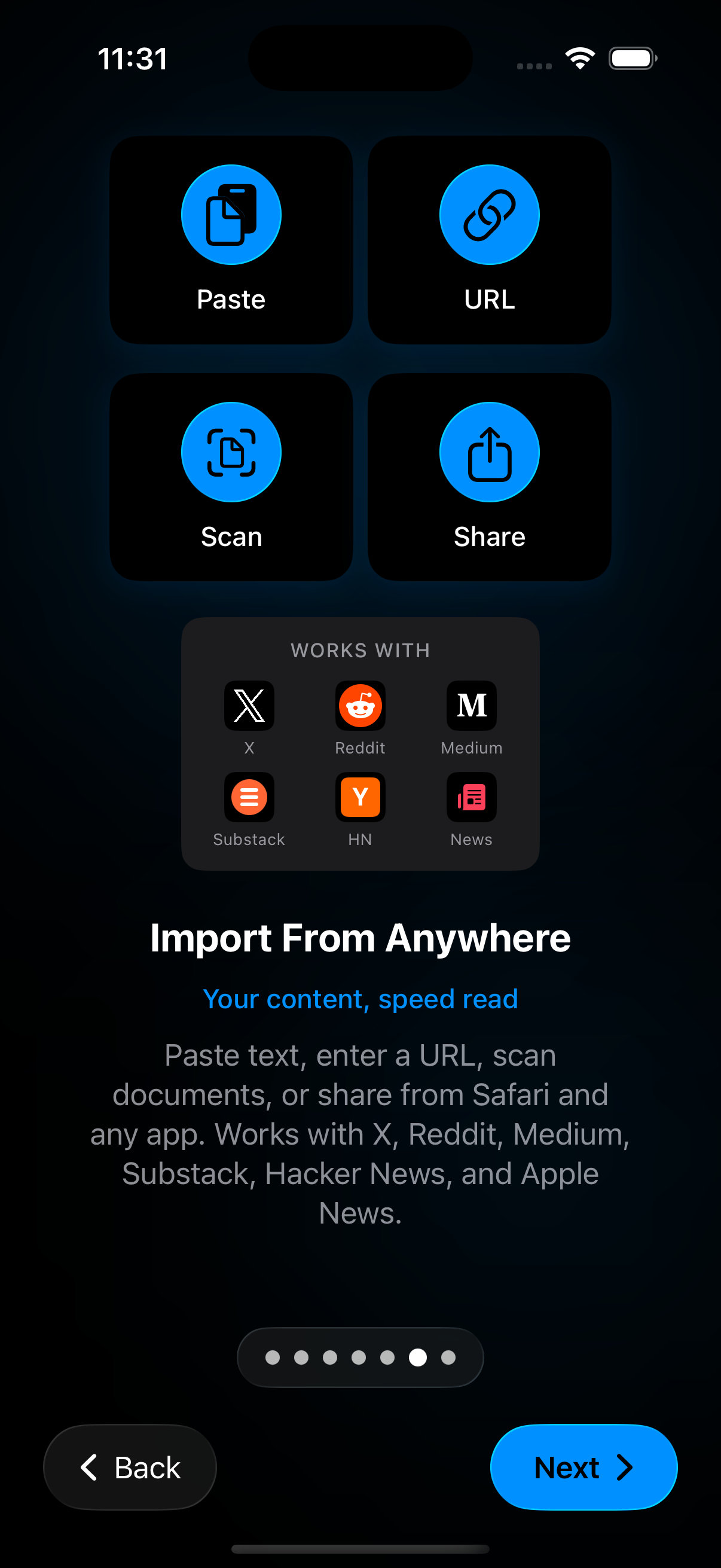
Most paper reading begins with a PDF, so import has to be fast. If getting the paper into the app feels annoying, the file waits longer than it should. Start with import PDF and EPUB files. The goal is to land the paper in a place where you can actually read, resume, and revisit.
Apple’s built-in reading tools are useful for opening PDFs, but a speed-focused workflow can help once your problem becomes backlog rather than file access.
Use a first-pass strategy
If you want to read research papers faster, do not try to understand every line equally on the first pass. Start with a structural pass. Read the title, abstract, section headings, figure captions, and conclusion path. Use paced reading where it helps you keep momentum. Slow down only when the text starts carrying the actual load you need.
This method keeps the paper from feeling like one huge wall. It also helps you decide whether the paper deserves a deep read at all.
Slow down on the expensive parts
Research papers become expensive in a few predictable places. Methods sections often carry dense procedure language. Statistical sections can be compact and hard to skim. Long result paragraphs may need back-and-forth with a figure. These are not the moments to force maximum speed.
Instead, treat them as mode-change moments. Lower the WPM. Increase font size if the page feels tight. Switch to a fuller reading surface if structure matters more than pace. If your eyes are fading, use listen mode for lighter narrative sections and switch back for the parts that need close visual inspection.
Use saved progress and bookmarks aggressively
Papers are almost never a one-sitting job. That is why bookmarks and resume matter so much here. If the app saves your place well, you can keep the reading task alive across short sessions. That alone makes it much easier to read research papers faster over a week.
Bookmark the sections that need a second pass. Mark the place where you stopped. Return with a smaller job next time. That is often how papers actually get finished.
Tame the display before you blame yourself
Academic PDFs put more stress on the reading surface than casual articles do. If the screen feels cramped, increase font size. If the page feels harsh, change theme. If the rhythm feels too forceful, lower pace and turn up pause support. Custom reading settings matter more for papers than for almost any other type of material on the site.
Here is why. The wrong display makes dense prose feel denser. The right display does not make the paper easy, but it can make it less draining.
Use audio as relief, not as a full substitute
People sometimes ask whether audio can solve paper fatigue. Sometimes it helps. A spoken pass through the introduction or discussion can keep momentum alive when your eyes are tired. But audio alone is rarely enough for tables, equations, notation, or figure-heavy sections. That is why the mixed workflow matters so much in academic reading.
Read visually when you need structure. Listen when you need continuity and relief. Switch back when detail matters again.
Next steps
If you need to start with the file itself, go to import PDF and EPUB files. If the problem is display fatigue, use custom reading settings app. If the question is whether audio belongs in the workflow, read speed reading app vs text to speech. The same first-pass-then-close-read approach carries over to reading legal documents faster and to revising for exams, where dense source material rewards the same workflow. Read research papers faster becomes much more realistic once you stop forcing one speed and start using one workflow.
Sources
So Much to Read, So Little Time: How Do We Read, and Can Speed Reading Help? | Association for Psychological Science | January 2016 | https://journals.sagepub.com/doi/10.1177/1529100615623267 Read books in the Books app on iPhone | Apple Support | Publication date not listed | https://support.apple.com/en-lamr/guide/iphone/-iphc1af7c57/ios RSVP Reader: Speed Reading App | Apple App Store | April 1, 2026 | https://apps.apple.com/us/app/rsvp-reader-speed-reading/id6757968737 Adjust voice and speed for VoiceOver and Speak Screen on your iPhone, iPad, and iPod touch | Apple Support | February 15, 2024 | https://support.apple.com/en-us/111798